Customer service process flowchart for warehouse and e-commerce support
This procedure walks a first-line support agent through every stage of a warehouse or e-commerce support ticket, from the moment an email or chat lands in the inbox to the point where the ticket is closed and tagged for weekly reporting.

Process flowchart
Step-by-step procedure
What you need
- Helpdesk or ticketing system with unique reference numbers
- Order management system (OMS) access
- Carrier tracking portal credentials
- Email and live-chat inbox
- Standard reply templates for common issues
- Escalation contact list (supervisor phone or chat handle)
- 1
Log the ticket in the helpdesk system Support agent
Open the message and create a new ticket before doing anything else. Record the customer's name, order number (ask for it if missing), the channel it arrived on (email or chat), and the timestamp you first saw it. Assign the auto-generated reference number so both you and the customer can quote it. If the customer has written to you more than once about the same issue, link the new message to the existing ticket rather than creating a duplicate. Done looks like: a ticket exists with a unique ID, the order number is filled in, and the channel field is set.
- 2
Categorise the issue and set priority Support agent
Pick one category from your list: shipping/delivery, product damage, wrong item picked, billing or payment, account access, or other. Set priority based on impact: a customer whose stock-arrival is delayed for a resale event is high; a question about return packaging is low. If the order is still in the warehouse and has not shipped, mark it as pre-shipment because you may be able to intercept the pick. This tag changes what you can do in the next steps. Do not guess the category if you are unsure; use 'other' and flag it for the supervisor at handover.
- 3
Send the acknowledgement reply Support agent
Reply within your target time (many small operations aim for under two business hours). Keep it to three or four sentences: confirm you have received the message, quote the ticket reference number, state what you are checking (for example, 'I am looking at the carrier tracking and our warehouse pick record now'), and give a realistic timeframe for a full answer. Do not promise a resolution in this first reply. If the customer is on live chat, send the acknowledgement immediately before you start investigating so they know you are still there. Done looks like: the customer has a sent message with the reference number and a next-update time.
- 4
Investigate using order and carrier records Support agent
Pull the order in your OMS. Check whether it was picked, packed, and handed to the carrier. If shipped, open the carrier tracking portal and note the last scan location and date. For damaged or wrong items, check the warehouse pick record to see which bin location it came from and whether a second picker verified the line. For billing issues, check the payment gateway status in your OMS. Log what you found in the ticket notes so the next person has the full trail. If the answer is clear (parcel lost, wrong SKU, duplicate charge), draft your resolution now; the next step handles sending it.
Can you resolve this within first-line authority? Support agent
- 5
Escalate to the operations supervisor Support agent only if needed
Forward the ticket to the operations supervisor with a short summary: what the customer reported, what you have already checked, and why it is beyond first-line authority (for example, a refund over your limit, a supplier recall, or a systemic picking error affecting multiple orders). Attach the carrier tracking screenshot and the OMS order snapshot. Do not wait for the supervisor to chase you; tag them on the ticket so it sits in their queue. Update the ticket notes with a handover timestamp.
- 6
Investigate and decide the resolution Operations supervisor only if needed
Pick up escalated tickets from your queue the same working day. Read what the agent already checked, then use warehouse-level access: pick lists, bin audits, supplier contacts and the carrier account. Decide the resolution within your authority, such as a refund above the agent's limit, a reshipment, a carrier claim or a supplier return. Write the decision and the reason in the ticket notes, and either send the reply yourself or brief the agent on exactly what to tell the customer.
- 7
Send the resolution reply to the customer Support agent
Write the reply in plain language. State what happened, what you did or are doing, and any next step on the customer's side (for example, 'your replacement is leaving today; tracking number within 24 hours'). If a refund was issued, confirm the amount and that it will appear on their original payment method. Do not include internal jargon like 'OMS' or 'bin location'. Keep the tone factual without over-apologising. Send the reply through the same channel the customer used and note the send time in the ticket. If the supervisor resolved it, they send; if you resolved it, you send.
Did the customer confirm the issue is resolved? Support agent
- 8
Close the ticket and tag for reporting Support agent only if needed
Once the customer replies 'that's sorted' or similar, mark the ticket as resolved. Add your final tags: the category you set earlier, the resolution type (replacement sent, refund issued, information provided, no action needed), and whether it was escalated. These tags feed your weekly support report so the operations supervisor can see which categories spike after a new product launch or a carrier change. Do not delete the ticket; keep it in the resolved view for reference. If your helpdesk allows, add a short one-line resolution summary (for example, 'Parcel lost in transit; carrier claim filed; reshipped from shelf').
- 9
Re-open ticket and escalate to supervisor Support agent only if needed
The customer says the problem persists. Add their follow-up message to the ticket with a timestamp so the timeline is clear. Note specifically what did not work: 'replacement arrived but wrong size again', 'refund not visible after five days', 'tracking still shows in sorting hub'. Because the first-line fix failed, this is now beyond your authority. Escalate to the operations supervisor with the full ticket history (both attempts) and a short note on why the first fix did not hold. The supervisor will contact the customer directly or arrange a different resolution. Mark the ticket as 'escalated - unresolved' so it does not sit in your open queue.
Checklist
About this procedure
Warehouse and e-commerce support tickets cluster around a handful of issues: a parcel that has not arrived, a damaged item picked from the wrong bin location, a billing error on a subscription, or a customer who needs to swap a size before the batch ships. This flowchart gives your team one consistent path so no ticket sits unacknowledged for two hours and no resolution goes out without the order number confirmed against your system.
The procedure assumes a small operations team (under 50 staff) where the same people who pick and pack also handle customer messages, or where a dedicated support agent of one to three people works alongside an operations supervisor. Every step names the person who does it, so you can hand this page to a new starter on day one and they will know exactly when to stop and pass the ticket up.
Two decision points control the flow: whether the first-line agent can resolve the issue within their authority (for example, issuing a replacement from stock versus refunding a full order value), and whether the customer confirms the problem is actually fixed before you close the ticket. If the first fix does not hold, the ticket escalates to the supervisor rather than looping back through the same steps.
Tips and common mistakes
Keep a small library of reply templates
Warehouse support repeats: lost parcel, damaged item, wrong SKU, billing query. Write four or five short templates with placeholders for order number and carrier name. They cut drafting time to seconds and keep the tone consistent when two agents are covering the same inbox.
Set a hard escalation threshold
Agree in advance what first-line can do without asking: for example, any single-item replacement under a set value, or any refund up to a set amount. Anything above that goes to the supervisor. Writing the number down means agents do not hesitate and customers do not wait an extra hour for permission.
Check the pick record before blaming the carrier
A 'missing item' complaint is often a warehouse picking error, not a lost parcel. Before you file a claim with the carrier, pull the pick-list and confirm the SKU was scanned at packing. If the scan is missing, the fix is internal (re-pick and reship), not an external claim that takes weeks.
Track your acknowledgement time weekly
Pull a simple report: how many tickets were acknowledged within two hours versus later. If the number climbs after 2 p.m., you may need a second pair of eyes on the inbox or a shorter break schedule. The data takes five minutes to pull and prevents slow replies from becoming the norm.
How to adapt this template
- Replace the priority definitions with your own thresholds: what counts as high (a customer facing a stockout for a resale event) versus medium versus low in your specific product range.
- Set the first-line authority limit (maximum refund value, maximum replacement cost) that triggers escalation to the operations supervisor. Write the actual figure on the wall or in the team handbook.
- Adjust the acknowledgement target time to match your staffing. A one-person support inbox may realistically hit four hours rather than two; a three-person team can hold two.
- Add or remove categories to match your product line. If you sell only one SKU with no size variants, drop 'wrong item picked' and add 'subscription management'.
- Define the follow-up window for unanswered confirmations (the step where the customer never replies) and the point at which you auto-close a ticket.
Laws and rules differ per country and region. Where a step depends on them, check what applies to your business before you use the procedure.
Frequently asked questions
What if the customer does not reply to confirm resolution?
Set a rule with your team: send one polite follow-up after a set number of days (many small teams use three business days) asking if anything else is needed. If there is still no response, mark the ticket as resolved-customer-unresponsive and tag it accordingly. Do not leave tickets open indefinitely; they clutter the queue and skew your reporting.
Who owns the ticket when a support agent is on break or off?
Assign a backup in your helpdesk system so unattended tickets auto-reassign after a set time (for example, 30 minutes). The operations supervisor should be the final catch-all. If only one agent covers support, the supervisor takes over directly and notes the handover in the ticket so the context is not lost.
How do I handle a customer who wants to speak to a manager on the first message?
Acknowledge the request, log the ticket as normal, and flag it for the operations supervisor. Do not argue with the customer or tell them they must go through you. The supervisor can decide whether to step in immediately or let the agent handle it. Either way, the ticket still gets a reference number and a category so nothing falls through.
Should I log phone calls in the same system as email and chat?
Yes. A phone call is a support interaction and should get its own ticket with the same fields: reference number, order number, category, priority. If your team does not have a dedicated phone line yet and calls come through the office number, assign one person to log them the same day. The reporting tags work the same way regardless of channel.
More warehouse templates

Order fulfillment process flowchart and checklist
A fulfillment process for small webshops and warehouses, from a new order to a delivered parcel: order and payment checks, stock, picking, packing, labelling, shipping and keeping the customer informed.

Pick and pack process for small warehouses
This procedure covers the full pick and pack process from opening a pick list to staging finished parcels for carrier collection, designed for small warehouses and e-commerce fulfilment teams of three to fifty staff.
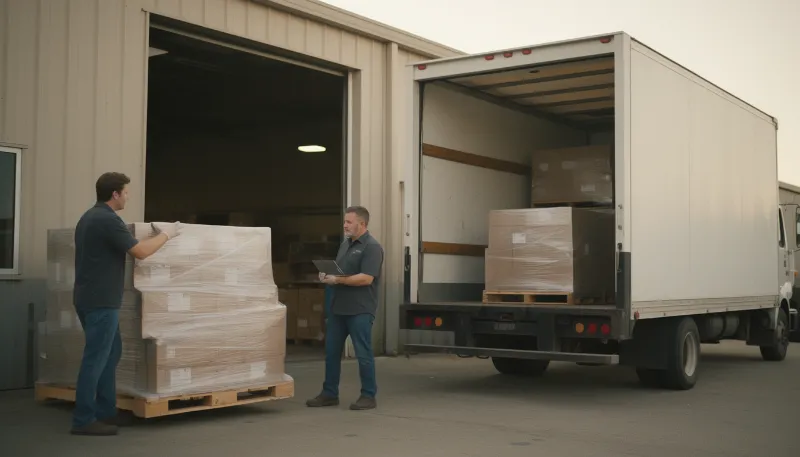
Warehouse receiving process: step-by-step SOP
This procedure covers the full inbound flow at a small e-commerce or fulfilment warehouse: from confirming the delivery slot through unloading, checking against the purchase order, inspecting, counting, labelling, updating stock, and putting goods away. It is written for receiving clerks, dock operatives, and shift supervisors.